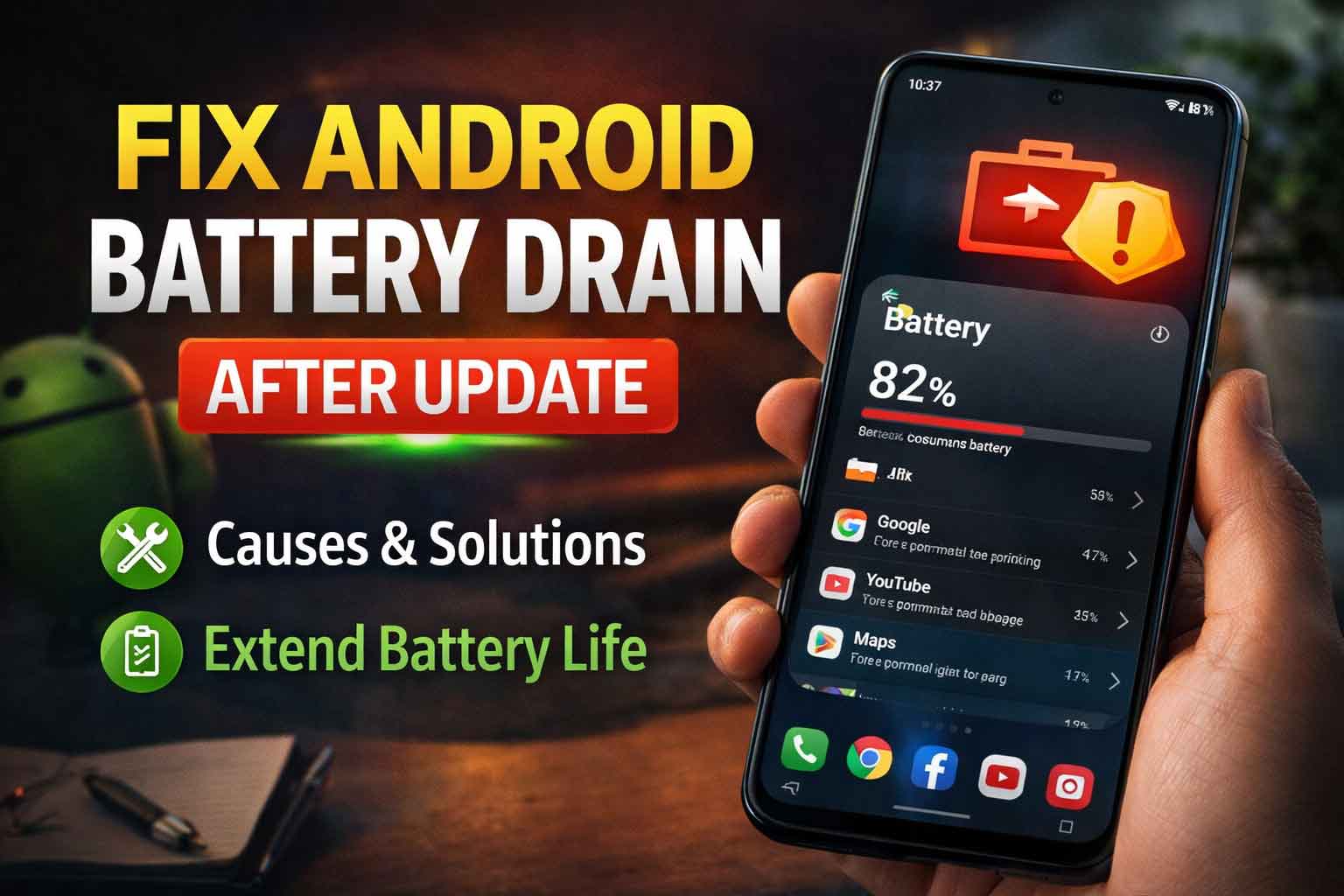
Fix Android battery drain after update is a common problem for users who notice their phone suddenly losing power faster than normal after installing a new Android version. This can happen even on healthy devices. In many cases, the update triggers background optimization, app reindexing, syncing, or new settings that use more battery than before.
The issue often improves on its own, but there are several useful steps you can try right away.
Why Battery Drain Happens After an Update
After a software update, your phone may temporarily:
- Reindex files and media
- Optimize installed apps
- Re-sync cloud accounts
- Re-enable certain services
- Use more background power for a short period
1. Give It 24 to 48 Hours
If the update was installed recently, do not panic immediately. Battery life often looks worse during the first day or two while Android finishes background work.
2. Restart the Phone
A simple restart can stop stuck background tasks and refresh the system.
3. Check Battery Usage by App
Instead of guessing, find out which apps are using the most power.
- Go to Settings > Battery
- Open Battery usage
- Look for apps using unusual amounts of power
4. Update All Apps
Some apps become inefficient after a major Android update until the developer releases a compatible version.
- Open the Play Store
- Update all installed apps
5. Reduce Screen Power Use
The display is one of the biggest battery users on most phones.
- Lower brightness
- Shorten screen timeout
- Use dark mode where supported
- Turn off always-on display if you do not need it
6. Limit Background Activity
Some apps keep syncing or running in the background long after you stop using them.
Check apps like:
- Social media apps
- Email apps with multiple accounts
- Fitness trackers
- Photo backup apps
7. Review Location and Wireless Scanning
Location, Bluetooth scanning, and Wi-Fi scanning can quietly increase battery drain.
- Review location permissions
- Disable scanning features you do not need
- Turn off location access for apps that do not need it
8. Turn On Battery Saver
Battery Saver can reduce background activity and help stabilise battery life while you troubleshoot the cause.
9. Remove a Problem App
If the battery issue started after a specific app update, uninstalling or restricting that app may help immediately.
10. Consider Battery Age
If your device is older, an Android update can make battery weakness more noticeable. In that case, the issue may be related to battery health rather than the update itself.
External Help
For official guidance, check Google’s Android battery help and Pixel battery diagnostics pages: get more life from your Android battery and battery draining too quickly on Pixel.
Final Thoughts
To fix Android battery drain after update, start with patience, then check battery usage, update apps, reduce screen drain, and limit unnecessary background activity. In many cases, battery life returns to normal once the system settles and problem apps are handled properly.
FAQ
How long does battery drain last after an Android update?
It often improves within 24 to 48 hours, though it can take longer on older phones.
Can an Android update permanently reduce battery life?
Usually not permanently, but weak or older batteries may feel worse after a major update.
What drains battery the most on Android?
Screen brightness, background syncing, location services, gaming, and poorly optimised apps are common causes.