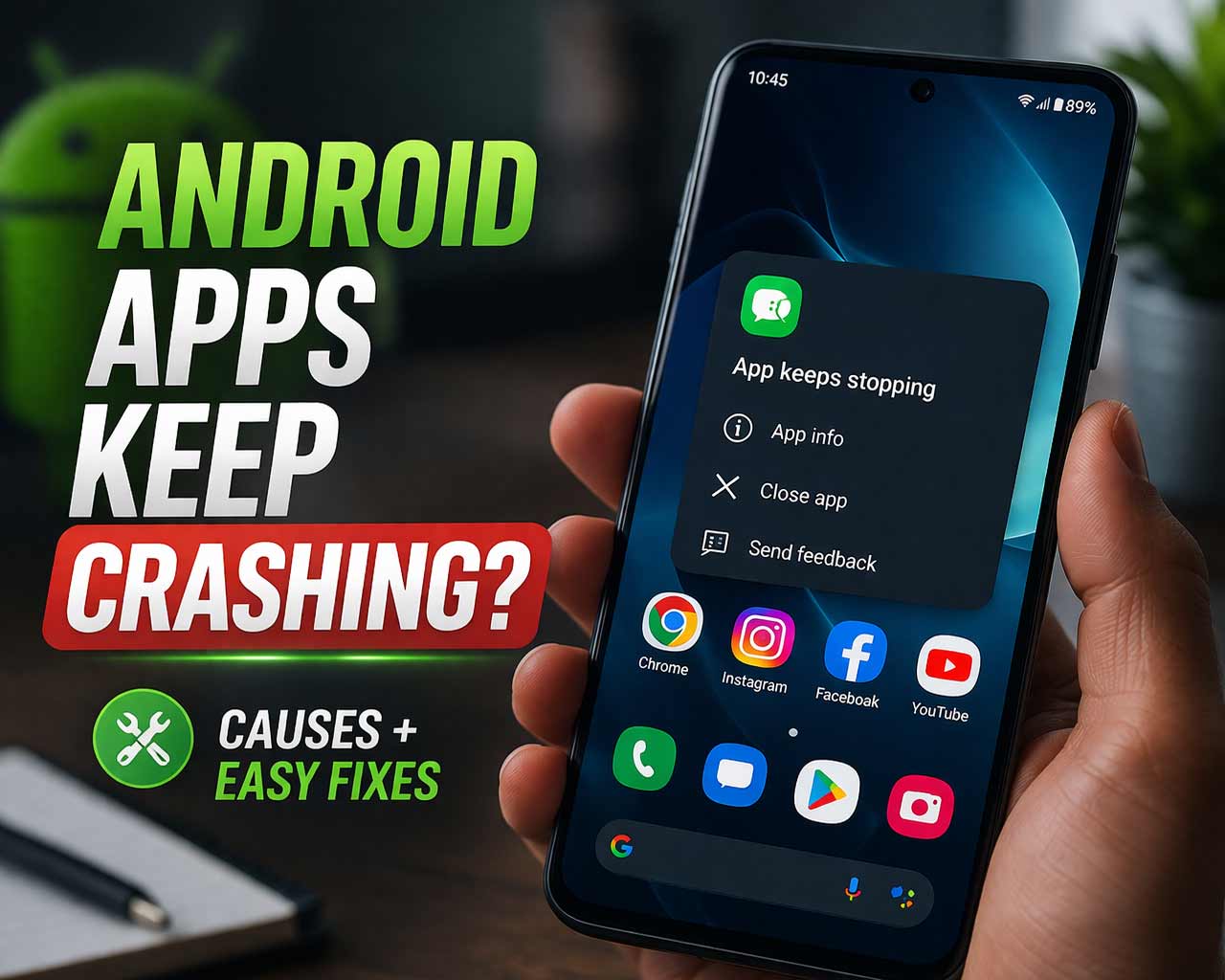
Android apps keep crashing is one of the most frustrating problems on any phone. Sometimes a single app keeps closing. In other cases, multiple apps start crashing after a software update, low storage issue, or a bad app version. The good news is that many crash problems can be fixed without doing a full reset.
Why Android Apps Crash
App crashes are usually caused by one or more of these issues:
- Outdated app versions
- Corrupted cache files
- Low free storage
- System update conflicts
- Bad app permissions
- A recently installed app causing instability
1. Restart Your Phone
This is the quickest first step and often fixes temporary glitches.
2. Update the App
If one app is crashing repeatedly, open the Play Store and make sure it is fully updated.
3. Clear App Cache
Corrupted temporary files are a common reason apps fail to open or close unexpectedly.
- Go to Settings > Apps
- Select the app
- Tap Storage
- Choose Clear Cache
4. Free Up Storage
Apps need free space to work properly. If your phone storage is nearly full, crashes become more likely.
5. Check for Android Updates
If multiple apps started crashing after a recent change, install any available Android system update.
6. Force Stop the App and Reopen It
If the app is stuck in a broken state, force stopping it may help.
- Go to Settings > Apps
- Select the app
- Tap Force Stop
- Open the app again
7. Reinstall the App
If updates and cache clearing do not help, uninstalling and reinstalling the app can replace damaged files.
8. Check App Permissions
Some apps crash if important permissions are denied.
Review access to:
- Storage
- Camera
- Microphone
- Location
9. Remove Conflicting Apps
Some cleaner tools, aggressive battery savers, or duplicate utility apps can interfere with normal app behaviour.
10. Reset as a Last Option
If many apps keep crashing across the system and nothing else works, back up your files and consider resetting the phone.
External Help
For official troubleshooting steps, read Google’s guide on fixing an installed Android app that is not working and its Android Help version of the same troubleshooting process here.
Final Thoughts
If Android apps keep crashing, start with the basics: restart the phone, update the app, clear cache, free storage, and check system updates. If several apps are affected at once, the cause may be system-wide rather than app-specific.
FAQ
Why do my Android apps keep crashing after an update?
A compatibility bug, bad app version, or corrupted cache may be causing the issue.
Does low storage make apps crash?
Yes. Low storage can reduce app stability and lead to freezing or crashes.
Should I clear cache or clear data first?
Clear cache first. Only clear data if needed, because it may reset the app.