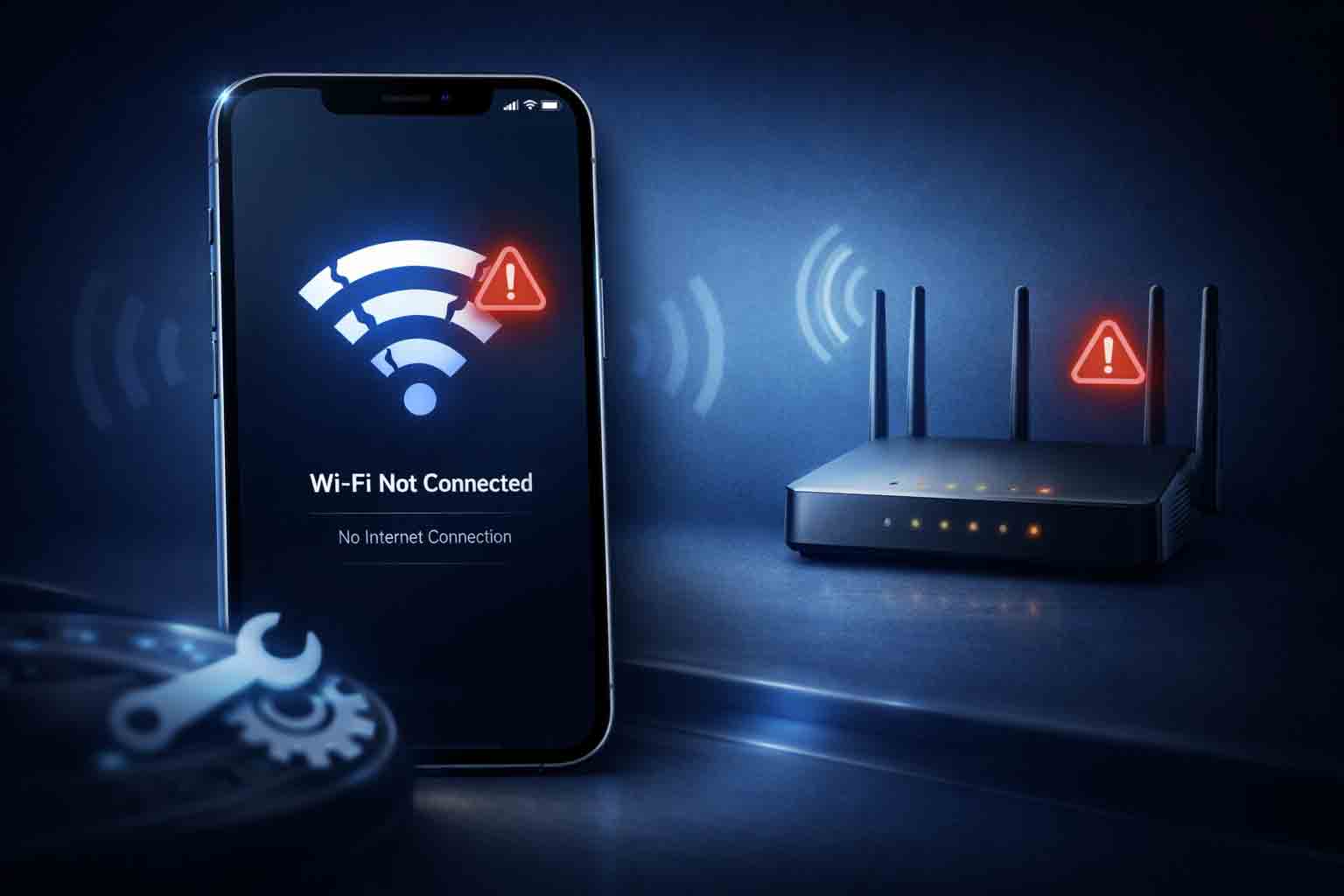
iPhone Wi-Fi Not Working is one of the most annoying problems because it affects almost everything you do on your phone. Apps may stop loading, websites may fail to open, messages may not sync, and software updates may not download properly.
The good news is that most Wi-Fi issues on iPhone are caused by settings, router problems, network conflicts, or temporary software glitches. In many cases, you can fix the issue in just a few minutes without advanced tools or risky changes.
Why iPhone Wi-Fi Stops Working
Wi-Fi problems on iPhone can happen for several reasons. Sometimes the phone cannot detect the network. Sometimes it connects but does not actually have internet access. In other cases, the connection keeps dropping, the password is rejected, or the iPhone works on one network but not another.
Apple’s current troubleshooting guidance recommends checking Wi-Fi settings, seeing whether the issue happens on only one specific network, restarting the device, and removing VPN or security software if it may be interfering. Apple also advises checking router settings and network compatibility in some cases.
1. Make Sure Wi-Fi Is Turned On
This sounds obvious, but it is worth checking first. Go to Settings > Wi-Fi and make sure Wi-Fi is turned on. If the switch is already on, turn it off for a few seconds and then turn it back on again.
Your iPhone should automatically search for available networks once Wi-Fi is enabled.
2. Check Whether the Problem Is Only With One Network
If your iPhone cannot connect to one specific Wi-Fi network but works fine on another, the issue may be related to the router or that network’s configuration rather than the iPhone itself. Apple specifically recommends checking whether the problem happens only on one network. :contentReference[oaicite:1]{index=1}
Try connecting to another Wi-Fi network, such as a different home network, office Wi-Fi, or a trusted hotspot. If another network works, the original network may need attention.
3. Restart Your iPhone
A simple restart often fixes temporary Wi-Fi glitches. Apple’s restart instructions for newer iPhones say to press and hold either volume button and the side button until the power-off slider appears, then drag the slider and wait before turning the device back on. :contentReference[oaicite:2]{index=2}
This can refresh network processes and clear minor software conflicts that stop Wi-Fi from working properly.
4. Restart Your Router
Sometimes the iPhone is not the real problem. The router may be overloaded, unstable, or temporarily failing to assign a proper connection. Apple recommends turning the router off and back on again if devices cannot access the internet. :contentReference[oaicite:3]{index=3}
Unplug the router, wait around 30 seconds, then plug it back in and let it fully restart before testing the connection again.
5. Forget the Wi-Fi Network and Rejoin
If your iPhone sees the network but cannot connect properly, forgetting the network and joining it again can help clear saved password or configuration issues.
- Go to Settings > Wi-Fi
- Tap the i icon next to the network
- Tap Forget This Network
- Reconnect and enter the password again
This fix is especially useful when the Wi-Fi password changed or the saved network settings became unstable.
6. Remove VPN or Security Apps Temporarily
If iPhone Wi-Fi Not Working started after installing a VPN app, security profile, or network filtering tool, that software may be interfering with the connection. Apple’s current guidance specifically says to uninstall VPN and security software when troubleshooting Wi-Fi connection problems. :contentReference[oaicite:4]{index=4}
If you use one of these tools, disable it temporarily and test the Wi-Fi again.
7. Check If the Network Is Hidden or Restricted
Some networks use a hidden SSID, MAC filtering, or other router restrictions. Apple notes that if the network does not appear, hidden SSID or router settings may be involved. :contentReference[oaicite:5]{index=5}
If you manage the router, review its settings. If not, contact the network administrator or your internet provider for help.
8. Update iOS If Possible
Software updates can fix bugs, improve stability, and resolve network-related issues. If you can access the internet through another network or mobile data, check whether an iOS update is available.
Go to Settings > General > Software Update and install any update that is ready. This is especially useful if the Wi-Fi issue started after a bug or after installing a previous iOS version.
9. Reset Network Settings
If the problem continues, resetting network settings is one of the strongest built-in fixes. Apple says that when connectivity issues continue, resetting network settings can help, followed by restarting and reconnecting to the network. :contentReference[oaicite:6]{index=6}
Keep in mind that this removes saved Wi-Fi networks, passwords, and some network preferences.
- Go to Settings > General > Transfer or Reset iPhone > Reset
- Tap Reset Network Settings
10. Force Restart If the iPhone Is Frozen
If the Wi-Fi issue happens together with freezing, screen lag, or system instability, a force restart may help. Apple says for many newer iPhones you should quickly press and release volume up, quickly press and release volume down, then press and hold the side button until the Apple logo appears. :contentReference[oaicite:7]{index=7}
Use this when the phone is unresponsive or a normal restart is not possible.
Common Wi-Fi Problems You May Notice
Not all Wi-Fi problems look the same. You may see one of these situations:
- Wi-Fi is greyed out
- The network does not appear
- The iPhone says connected but internet does not work
- The password is rejected even when correct
- The connection drops repeatedly
- The phone works on other Wi-Fi networks but not yours
Understanding which type of issue you have makes it easier to choose the right fix first.
What Not to Do
Avoid random third-party “Wi-Fi booster” or “network repair” apps. These usually do not fix the real cause and can make troubleshooting more confusing. It is safer to use Apple’s built-in settings and the router’s own controls.
Also avoid repeatedly changing many settings at once. Test one fix at a time so you know what actually solved the problem.
When the Problem May Be Bigger
If your iPhone cannot connect to any Wi-Fi network at all, the Wi-Fi option is greyed out, or the issue continues after resetting network settings, there may be a deeper software or hardware problem. In that situation, backing up the device and contacting Apple support is a better next step.
If only one network fails and every other device works on it normally, the router or its configuration is more likely to be the cause.
Helpful External Resources
For Apple’s official Wi-Fi troubleshooting page, visit:
If you can’t connect to Wi-Fi on your iPhone or iPad
For Apple’s official guide to joining a Wi-Fi network, visit:
Connect to Wi-Fi on your iPhone or iPad
For Apple’s official restart instructions, visit:
Restart your iPhone
Final Thoughts
iPhone Wi-Fi Not Working does not always mean something serious is wrong. In many cases, the fix is as simple as restarting the phone, restarting the router, checking whether the issue happens on only one network, forgetting the network, or resetting network settings.
Start with the easiest fixes first and move to stronger steps only if needed. That approach saves time and helps you avoid unnecessary changes.
For more practical Apple troubleshooting guides, explore the iOS section on OSFILE.


