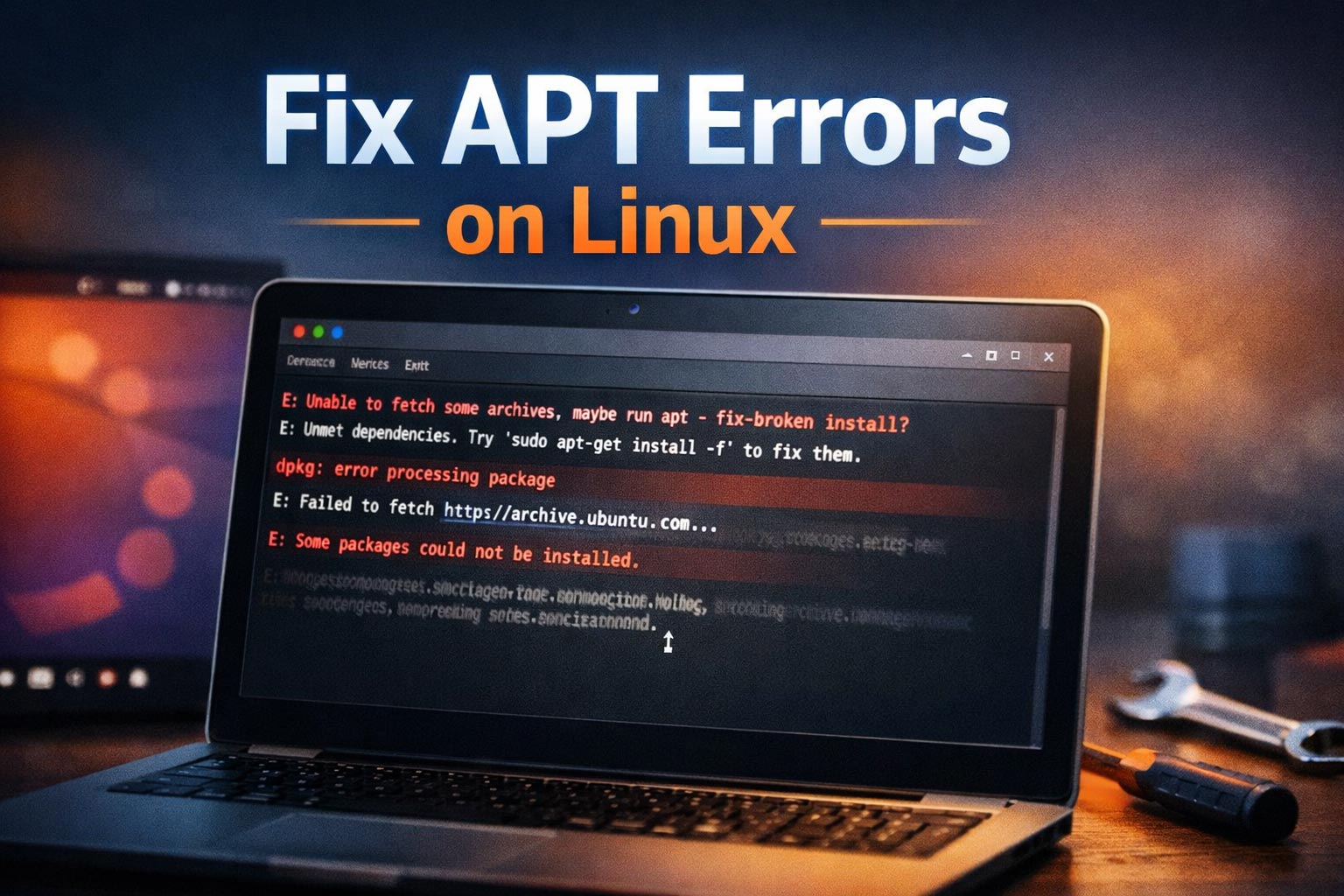
Fix package manager errors on Linux is a common need when updates fail, dependencies break, or APT refuses to install software normally. These problems often appear after an interrupted update, a broken repository, a package conflict, or a source list issue. While the error messages can look intimidating, many package manager problems follow familiar patterns and can be solved step by step.
This guide focuses mainly on Ubuntu and other Debian-based systems using APT, because those are where users most often see these messages.
Common Signs of Package Manager Problems
apt updatereturns errors- Package installation stops because of broken dependencies
- The system says packages are held back or not fully installed
- A repository cannot be reached or verified
- Software updates fail midway
1. Read the Exact Error Carefully
Do not rush past the message. Package errors often point directly to the real problem: dependency conflict, repository issue, lock file problem, or broken package state.
2. Refresh Package Information
Start by updating package lists:
sudo apt update
If this fails, the error may be related to a repository entry, network problem, or signing issue.
3. Repair Broken Packages
If an installation was interrupted, package repair commands may help restore consistency.
sudo apt --fix-broken install
4. Finish Incomplete Package Configuration
Sometimes packages are unpacked but not fully configured. In that case, finishing configuration may solve the issue.
sudo dpkg --configure -a
5. Check for Repository Problems
If a repository is outdated, unavailable, or incorrectly added, APT may fail during update. Review custom repositories carefully and disable any source you do not trust or no longer need.
6. Avoid Random Copy-Paste Fixes
Package issues can look similar but have different causes. A command that fixes one machine may create a new problem on another. Work from the exact error message instead of guessing.
7. Clear Package Cache If Needed
In some cases, cleaning cached package files can help reduce confusion around partial downloads or failed package states.
8. Reboot After Major Repair Steps
If you repaired packages, changed repositories, or completed interrupted updates, a restart can help confirm whether the package system is stable again.
9. Use Official Documentation for Package Management Basics
Ubuntu’s official package-management documentation explains how APT and dpkg work together. Understanding that relationship helps when package errors involve dependencies or local package handling.
10. Ask for Help With the Real Output, Not a Summary
If none of the steps work, save the exact Terminal output. Real package manager troubleshooting depends on the full error text, not a guessed explanation.
External Help
For official references, see Ubuntu’s documentation on installing and managing packages, the Ubuntu tutorial on managing software, the community page for APT usage, and Ubuntu’s package manager troubleshooting procedure.
Final Thoughts
To fix package manager errors on Linux, begin with the real error message, refresh package lists, repair broken packages, finish incomplete configuration, and review repository problems carefully. Most APT issues are fixable, but the safest approach is always methodical rather than random.
FAQ
What causes package manager errors on Linux?
Common causes include interrupted updates, broken dependencies, repository issues, or partially installed packages.
Is APT the same as dpkg?
No. On Ubuntu and Debian-based systems, APT works at a higher level and uses dpkg underneath for local package handling.
Should I copy random terminal fixes from forums?
It is safer to avoid random commands unless you understand the error you are solving.