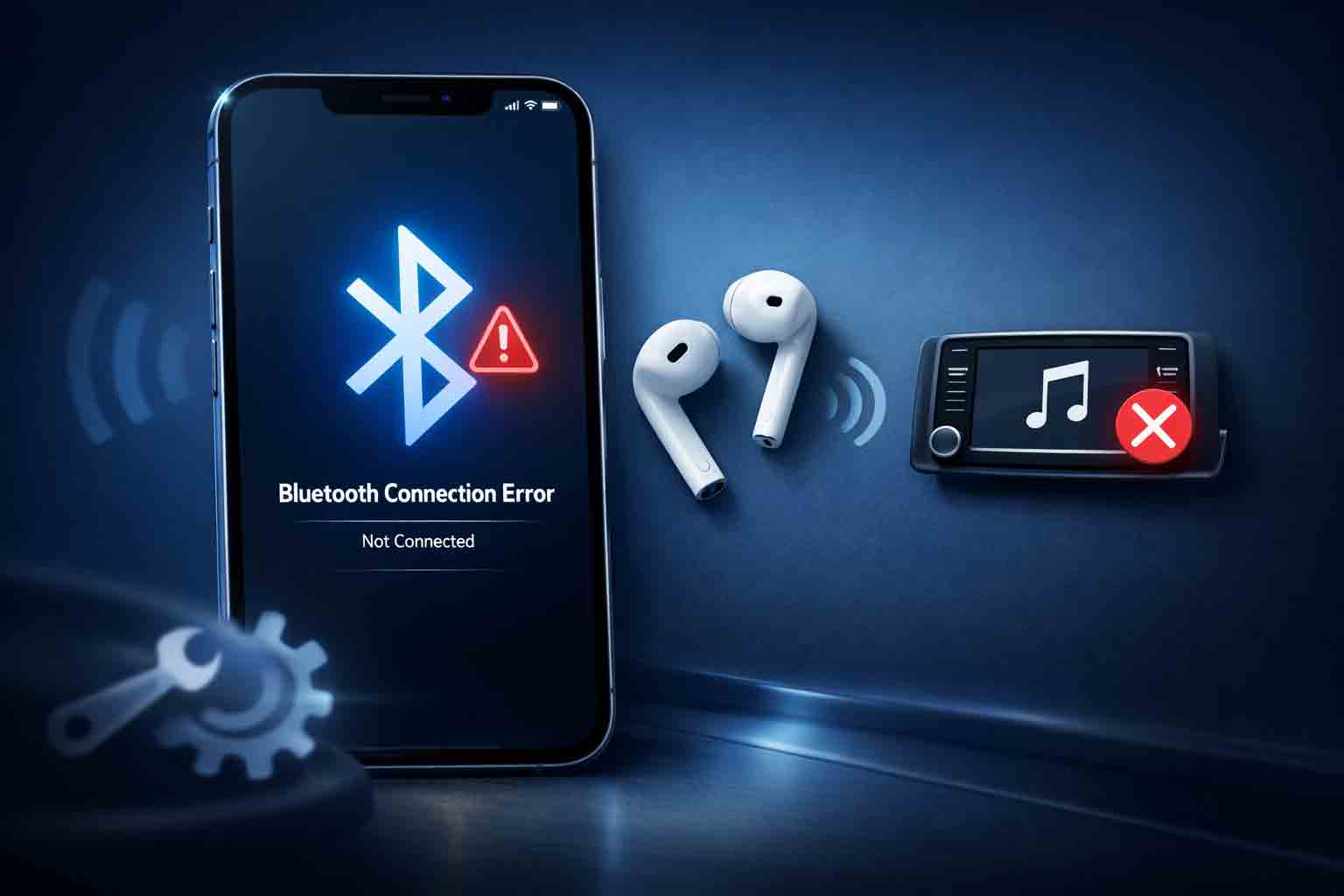
iPhone Bluetooth Problems can be frustrating when your headphones, car system, speaker, smartwatch, or other accessories refuse to connect properly. Sometimes the device does not appear at all. In other cases, it connects and then disconnects, audio cuts out, or pairing fails again and again.
The good news is that most Bluetooth issues on iPhone are caused by simple things such as pairing mode problems, temporary software glitches, Bluetooth permissions, accessory battery issues, or confusion between Control Center and full Bluetooth settings. This guide walks through the most useful fixes in a clear, practical order.
Why iPhone Bluetooth Problems Happen
Bluetooth issues usually happen because the accessory is not in pairing mode, the accessory battery is too low, the iPhone has stale pairing data saved, or the app linked to the accessory does not have Bluetooth permission. Apple’s official support page specifically tells users to confirm that the accessory is powered on, charged, and discoverable, and to check app Bluetooth permission under Privacy & Security when relevant.
Another common mistake is thinking Bluetooth is fully turned off from Control Center. Apple explains that tapping the Bluetooth icon in Control Center disconnects current accessories temporarily, but Bluetooth can still remain available for features like AirDrop, Apple Watch, and Location Services. If you want to fully control Bluetooth for troubleshooting, use Settings > Bluetooth instead.
1. Turn Bluetooth Off and On in Settings
The first fix is simple. Go to Settings > Bluetooth, turn Bluetooth off, wait a few seconds, and turn it back on. This refreshes the Bluetooth connection more reliably than using only Control Center.
If the issue is minor, this quick reset may be enough to make the accessory appear again or reconnect properly.
2. Make Sure the Accessory Is Charged
If iPhone Bluetooth Problems started suddenly, check the accessory itself before changing too many phone settings. Apple advises users to make sure the Bluetooth accessory is on and fully charged or connected to power. If the accessory uses replaceable batteries, those may also need attention.
This step is especially important for wireless headphones, speakers, keyboards, mice, and older car accessories.
3. Put the Accessory in Pairing Mode
Many accessories will not show up on your iPhone unless they are placed into pairing or discovery mode first. Apple’s pairing instructions say to use the accessory’s own manual or setup method to make it discoverable, then open Settings > Bluetooth and tap the accessory when it appears.
If the accessory was already paired with another phone, tablet, or computer, you may need to disconnect it from that device first before your iPhone can see it.
4. Forget the Device and Pair Again
If the accessory appears but keeps failing to connect, remove the saved Bluetooth connection and pair it again from scratch.
- Go to Settings > Bluetooth
- Tap the i icon next to the device name
- Tap Forget This Device
- Put the accessory back into pairing mode
- Reconnect it again
This often fixes corrupted pairing data and repeated reconnection problems.
5. Restart Your iPhone
Restarting the iPhone can clear temporary connection glitches and refresh system services. If Bluetooth worked earlier and now fails for no obvious reason, a restart is one of the safest and fastest fixes to try.
This is particularly useful when Bluetooth issues started after an app froze, after switching between multiple accessories, or after a recent update.
6. Check Bluetooth Permission for the App
Some accessories rely on an app to complete setup or manage features. Apple says that if you use an app with the Bluetooth accessory, you should go to Settings > Privacy & Security > Bluetooth and make sure Bluetooth access is turned on for that app.
If Bluetooth permission is disabled, the accessory may appear to connect poorly or the setup process may fail halfway.
7. Do Not Rely Only on Control Center
This is a very common source of confusion. Apple explains that when you tap the Bluetooth button in Control Center, your iPhone immediately disconnects from Bluetooth accessories, but Bluetooth itself remains available for certain Apple features.
That means if you are troubleshooting a stubborn Bluetooth problem, the better place to work is Settings > Bluetooth, not just the quick toggle in Control Center.
8. Update iOS and the Accessory App
Bluetooth problems can sometimes come from software bugs or compatibility issues. Apple’s broader setup and support guidance often recommends staying on the latest version of iOS, and many accessory makers also release app updates that improve connection stability.
If you can, update iOS, then update the accessory’s companion app from the App Store before testing again.
9. Reduce Wireless Interference
If your accessory connects but the audio cuts out or the signal feels unstable, nearby wireless interference may be part of the problem. Apple’s headphone support guidance recommends unpairing and re-pairing when sound cuts out, which can help reset the connection path.
Try moving away from crowded wireless environments, keep the accessory near the iPhone during setup, and avoid testing with too many active wireless devices right beside each other.
10. Reset Network Settings if the Problem Continues
If Bluetooth still fails across multiple accessories, resetting network settings may help because it clears stored network-related connection data, including Bluetooth pairings.
Use this only after the earlier steps because it also removes saved Wi-Fi networks and passwords.
- Go to Settings > General > Transfer or Reset iPhone > Reset
- Tap Reset Network Settings
Common Bluetooth Problems You May Notice
Bluetooth issues do not always look the same. You may notice one of these situations:
- The accessory does not appear in the list
- The device appears but will not connect
- Bluetooth connects and disconnects repeatedly
- Audio cuts out on wireless headphones
- The accessory works with another phone but not your iPhone
- The setup app cannot detect the accessory
Identifying the exact behavior helps you choose the right fix more quickly.
What Not to Do
Avoid random third-party “Bluetooth repair” apps. They usually do not fix the true cause and can make troubleshooting more confusing. It is better to use Apple’s built-in Bluetooth settings and the accessory manufacturer’s official instructions.
Also avoid tapping many settings at once without testing between steps. A calm, step-by-step approach works better for finding the real cause.
When the Problem May Be Bigger
If your iPhone cannot pair with any Bluetooth accessory at all, multiple known-good accessories fail, or Bluetooth settings behave abnormally even after restarting and re-pairing, there may be a deeper iOS or hardware issue.
If that happens, back up your iPhone before trying major reset steps. If the issue continues after resets and updates, Apple support is the safer next option.
Helpful External Resources
For Apple’s official Bluetooth troubleshooting page, visit:
If a Bluetooth accessory won’t connect to your iPhone or iPad
For Apple’s official pairing guide, visit:
Connect a third-party Bluetooth accessory to your iPhone
To understand how Bluetooth works from Control Center, visit:
Use Bluetooth and Wi-Fi in Control Center
Final Thoughts
iPhone Bluetooth Problems are usually fixable without advanced repair. In many cases, the best results come from using Bluetooth settings directly, checking the accessory battery, putting the device into pairing mode, forgetting the old connection, and checking Bluetooth permission for the related app.
Start with the simplest fixes first and move to stronger steps only if needed. That saves time and reduces the chance of unnecessary changes.
For more practical Apple troubleshooting guides, explore the iOS section on OSFILE.


